

Channel Guides
- Details
- Category: Channel Guides
- Hits: 20000
A XDCC bot is one which sits in an IRC channel, and advertises "packets" of files it offers, which you can "trigger" to download. Common formats of triggers you issue to start the DCC (Direct Client to Client, an IRC protocol) transfer looks something like "/ctcp NICK xdcc send #_" (underscore is a number)
Note: In the encode guide, look in the "XDCC Listings". You can get the trigger for each file on the XDCC bots there.
DCCs are quite different to File servers (Fservs).You will see an ad something like this:

To get a list of the files on the XDCC server you type what it tells you to type for a listing. In this case it's "/msg sadisticroot xdcc list"
This will then give you something like this:

It tells you at the end how to get a file, in this case it's "/msg sadisticroot xdcc send #
Some common XDCC bot software are:
- iroffer - the most commonly used bot, fast and made just for serving XDCC packets
- SysReset - a popular mIRC script with a good integrated XDCC system
- Details
- Category: Channel Guides
- Hits: 7080
[ UPP File Server Setup ]
- Download and Install UPP from http://upp.monkey-pirate.com/
- Launch the fileserver settings via the UPP control panel and go to the shared tab. The fserv cache is so the script works faster and fserve sessions take less resources. If you put new content on your server very often, you might want to enable cache expires in 1 hour so UPP will refresh the cache every hour. Most of the time setting 'on-start', and from time to time manually refreshing is enough though; update cache on fileserver error is also recommended. Next add a mountpoint - this is the directory where the files you want to serve are stored
- Now move on to the triggers tab, and click add trigger
The trigger field stands for the trigger itself, e.g. the part which comes after /ctcp or the text the user has to type in the channel e.g. on /ctcp triggers, people would have to type '/ctcp cow leech my stuff'
The difference between normal and ctcp; with normal triggers everyone in the channel can see when someone types your trigger to access your fserve, and in a big channel that might result in a lot of 'trigger-spamming' (where many people type your trigger out of curiosity after seeing someone else type it). In #TV-Encodes we ask you to use ctcp triggers as these don't flood the channel with people trying to access your server
Required level: if you'd set this to 'at least +v', only users who are voiced in one of the channels that trigger is running in can access the fserve. When using ctcp triggers, you have the choice between 'none' and 'any'. With 'any', everybody in one of the channels can access the fserve via that trigger, when on 'none' only people outside the channel can access your fserve (Usually not a good idea)
When 'apply to !list reply' is enabled, users typing '!list' in one of the trigger's channels, will get notified of your fileserver
In the channel box we have the choice between 'all', 'all except' and 'only'. I advise the option 'only', as you have the most control about your server there, and it won't start running in channels it isn't meant to run in - Now click the select button below 'queuepool'. Select the above line (queuepool 1) and choose edit
- Click OK, OK and ADD and your trigger is added. You can repeat this whole process when you want to add more triggers (except you won't have to edit a queue pool if you decide to reuse/share one that you already created/tweaked)
- Now back to the fserve ad tab
Here you can specify which parts you want to have in your fserve ad. (Snagged stands for the combined size of all files sent). Strip ad and short ad will both shorten the ad, and split ad will split it into 2 lines (when you have a lot of triggers which don't fit in one line)
Make sure the show ad every box is unchecked as we don't allow ads to be shown in #TV-Encodes as they needlessly spam the channel - Next go to services tab
If you want to enable users to do @find, change the settings according to the picture above
Enable fserve on start: force sends on connect would be enabled most likely, otherwise you'd have to start them both manually;
Session Timeout: A leecher will get disconnected when there's no activity on the fserve for x minutes;
timelimit: is the maximum time someone can spend on your fserve
Max users: is the maximum number of users who can browse your fserve simultaniously
If DCC watch is enabled, a queue/send will dequeue/stop if a leecher has parted all channels your fserve is running in. We ask if you intend to serve in #TV-Encodes that you turn this feature on - Now go to the priority tab you can give ops/hops/voices priority queueing level. That way other servers will get priority over normal users. You can also specify priority for certain channels/users
- Next go to the General tab
When fserve send only mode is enabled, your fserve ad won't show up (nor in !list) when all sends/queue slots are full
Make sure both enable on start and force sends on connect are enabled
Click apply and ok - Now launch the fileserver settings via the UPP control panel and go to the sends tab. If you enable min cps, people will have to reach a minimum speed when downloading or else UPP will automatically cancel their sends. This comes in handy when people hammer your serve with 1kb/s downloads with 10 queued ppl waiting. It's reasonable to warn 'em at least 2x, cause a connection can always have a 'burp'. Keep in mind that this will keep slow people from being able to get files from your fserve (depending on what you set your mincps to)
Max cps is if you want to have some bandwidth left for yourself too. For example, if your maximum upload is 50kb/s, you can set the max cps to 40000; then you'll have 10kb/s left for stuff besides ircIf you're behind a firewall and/or router, and dcc doesn't work in normal mode, you can enable firewall mode on the firewall tab also make sure that port 59 is open and pointing to your computer on your router/firewall
- Right click in the channel and go to serving - fserv and click start and you're done. Please an have OP check your fserv to make sure it is working and complies with the Channel Rules


In this window you can change sends, queues, instasend, and min cps stuff. These settings will apply on all triggers using this pool. UPP knows an advanced system for serving on multiple networks and controlling queues/sends, but we'll assume you'll just work with one queuepool, to keep it easy
When instasend is enabled, files below the specified size will send immediately, and won't end up in queues. This is usefull if you're serving .nfo's, .cue's among larger files
The send fail system will requeue a failed send into a prioritized queue, so the leecher won't have to wait all over again, or create a prioritized fail-queue, depending upon which you have specified in the userfriendly tab of the sends module


- Details
- Category: Channel Guides
- Hits: 13881
mIRC
Q: Why can't I serve my download directory?
A: As files you download go into your download directory, this means that somebody could easily download a file that is incomplete, or being downloaded. Incomplete files are of no use to anybody, so it's best to share your completed downloads checked (by CRC) and organised in a directory of their own.
Q: How do I change my nickname/screename?
A: Simply type /nick newname where newname is your new nickname. Be aware that the name you want to change to MAY be registered by somebody else already.
Q: How do I register my nickname/screename?
A: First of all, you must be USING the nickname you want to register. If you aren't, see the above answer. Then, you must type /msg nickserv register password email where password is replaced with your choice of password (Passwords are case sensitive. Please make it something that only you will know!) and email is replaced by your email address. The e-mail address must be valid. Dejatoons respects your privacy, and they will not give out your email address to any third-parties. Make sure you type the message to nickserv in your STATUS window, to prevent a slipup happening where everybody will see your password.
Q: What order is your episode guide? Airing Order or Production Order?
A: Well to be quite honest, it's neither. It's true that our episode order for most series is based on Production Order (with modifications for episodes purposely filmed out of order such as "Forever Red" or "Wormhole" which were filmed out of order to fit around cast schedules), but for other series (Season 2 in particular) we used SirStack's "PR Spoilers" archive as reference for the correct order the episodes should run in. Airing order is never a good order to run an episode order with, and so we feel we have chosen the best possible order for the seasons.
Q: Why can't I serve episodes I found on the internet/another Power Rangers irc channel?
A: People in our channel would rather have the complete set of encodes from one source, rather than many different places. And episodes from other places can be encoded differently, have a silly pre-episode screen advising of the encoders, be of varying sizes, or in some cases we’ve seen the episode being made up from a few recording sources to fill in cuts. Our encoders work hard to give the episodes for our channel, and now with almost each season being complete, many people consider it ignorant to serve other places encodes. If you serve other places encodes, you will be asked to remove them or you may be warned or banned. Entertainment is a privilege, not a right, and therefore we want absolutely no links to where DVD rips can be downloaded in our channel.
Q: Why do I get my nick devoiced? I am serving.
A: Most likely you are either serving unauthorized content or you are not serving 5 or more encodes as stated in the rules. This makes it easy for users to pick out who is actually serving content in the encode guide and who isn't.
Q: Why do I not see file server triggers of voiced users?
A: Some file server owners choose to restrict their servers to voiced users only. The only way to be voiced on #power-rangers is to become a server yourself and follow the rules.
Website
Q: How do I get episodes? I was told I could download them from here.A: You must join our IRC channel, #power-rangers, on irc.dejatoons.net. We do not share episodes on the website. We do not have the money to host files here and sharing large files on HTTP protocol (aka the web) can cause problems.
Q: Why am I getting rejected from being registered on this website?
A: Most likely you are not using the nickname on the channel or you have not registered your nickname on the dejatoons' network. This is required to be a member of this website.
Q: I am getting "User not Found" when trying to edit my profile or "Function has been disabled" when uploading profile picture.
A: You need to go into your cookies and delete all cookies related to the prmhub.com (or easiest to just delete all cookies). This should only effect Firefox users that have recently logged into the Torrent section.
- Details
- Category: Channel Guides
- Hits: 9904
Download sysreset from http://www.dejatoons.com/sysreset/
Install it to a separate directory from your existing mIRC, if applicable, then run the new mIRC.exe.
How to set up a f-serv: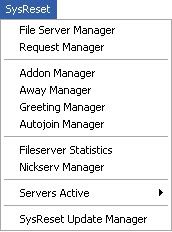
Select File
Server Manager. 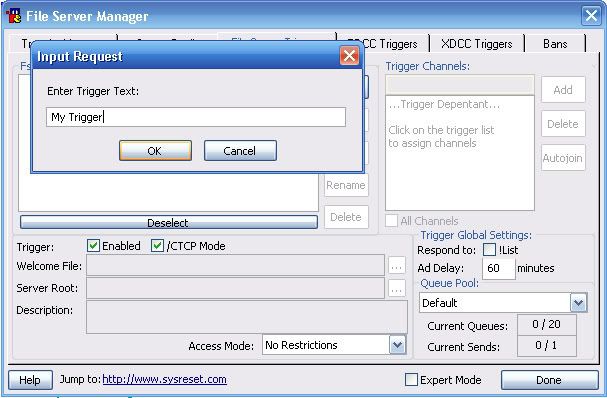
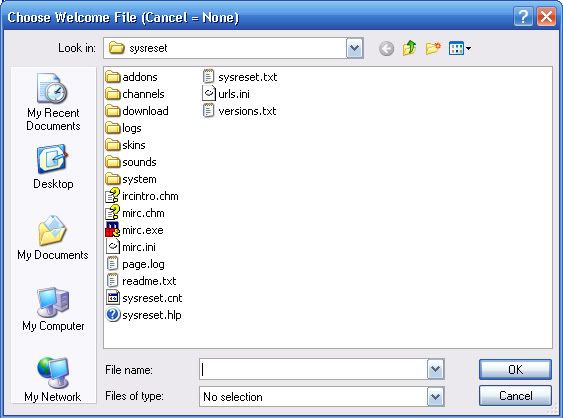
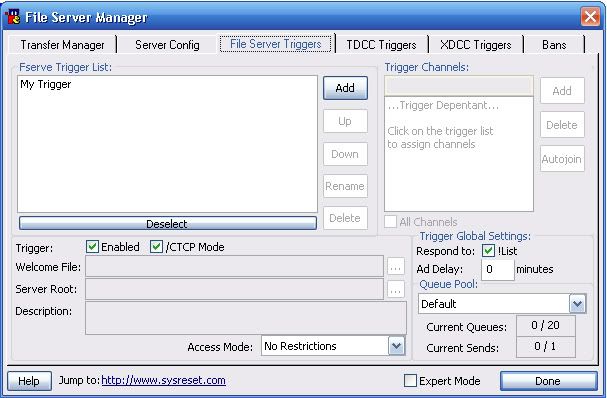
You'll need
to create a trigger for someone to access your fserv. So click add and just
follow it thru. Name your trigger, press cancel when you get a welcome file and
find the folder where your files are to share. Make sure the trigger, /ctcp mode
box and the respond to !list box is check. Put 0 minutes for ad delay. Press
done until you get to the main screen.
To activate
your server to the above.
If
you're behind a firewall you need to do the following: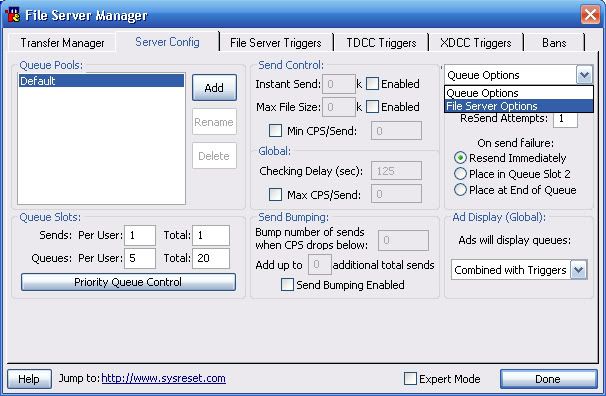
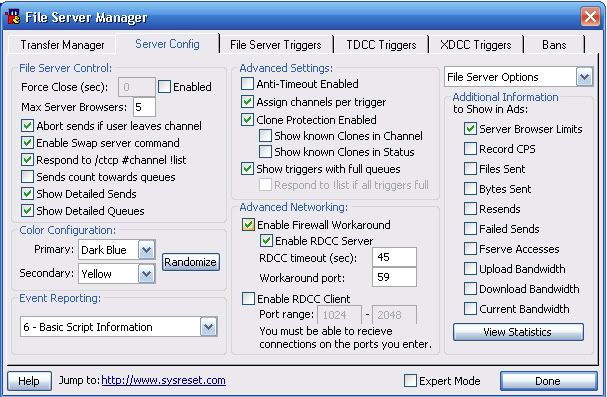
Follow this
picture, except uncheck the box that says enable RDDC Server.
Make sure you check enable firewall
workaround and set the port to 59.

- Details
- Category: Channel Guides
- Hits: 22024
Site Rules
Registration Requirements:
- Passwords must not be the same as your username.
- Passwords require at least 1 Uppercase (A-Z), lowercase (a-z), 1 number (0-9) and 1 special character like @#!. Must be 8 characters long
- Administrator level requires Google Authenticator
Forum Rules:
- Be respectful of others on the forum, including the Moderators and Admins. Disrespect will result in a ban from the website.
- Do not complain about the password rules. These are standard password rules these days
- No unauthorized advertising of your website. Requires approval.
- No porn posts. This includes naked pictures of actors/actresses from Power Rangers and other related series.
- When posting requests for clean versions of music, you need to note a known source when you do. Could be a CD or digital service (including YouTube).
- Do not request for lossless items from Ron Wasserman. He's requested that only MP3s be shared. He got into trouble for the SPD Instrumental leaking, so we need to respect his requests.
- Details
- Category: Channel Guides
- Hits: 12983
SFV (Simple File Validation) is used for checking consistency in files. We expect all users, especially f-servers, to check all of their files using the SFVs. Corrupt, incomplete or failing files can not be served.
We recommend using hkSFV to check your files. You can download it here.
hkSFV is the simply the easiest, most intuitive and automatic way to create or check .SFV and .MD5 files. And, of course, it's completely free.
What is an .SFV? -- An .SFV file is a tiny list of files and CRCs, which allow you to check to see if the files you have downloaded are exactly what you are expecting. The CRC algorithm used in .SFV files allows you to see if the file you have has been changed, even a single byte, since the .SFV file was created.
What is an .MD5? -- In a sense, .MD5 did not exist until now, as md5sum is a popular Unix format similar to .SFV and Unix does not use file extensions the way Windows based systems do. .MD5 uses the md5 algorithm to compute its checksums, rather than the crc32 method used by .SFV. The md5 algorithm is almost as fast as crc32, but it is much more accurate at detecting changes in files.
If you need to ensure that your data or data you download is error free, this program is for you.
If you've got an .SFV or .MD5 file, this is the program for you.
If you'd like to create an .SFV or .MD5 file, this is the program for you.
The fastest way to check an .SFV file is to put it in the directory of the files you wish to check, and double click it. This will launch hkSFV and it will automatically verify your files. You can also run hkSFV and then use File|Open to verify and .SFV.
If the files have different filenames than what is in the SFV and you wish the the program to find the renamed files, click Tools>Find Renamed Files.
The SFV will rename your files on the default setting. To stop this, click File>Preferences. Click the "Checking" Tab and change the Renaming option to "none".
Page 1 of 2